Spend an evening in any forum for handwriting apps and you'll find the same post, written a hundred different ways. An update wiped my library. The backup I trusted stopped running months ago. Sync kept the wrong copy. I left my iPad on the train. Each one ends with a semester of lecture notes that are simply gone.
Almost none of those people were careless. They had a backup, or thought they did. What they hadn't done was check it. This audit takes about fifteen minutes and works whatever app you use. Do it once now, and you'll know which of those posts you'd be writing.
1. Find out where your notebooks actually live (3 minutes)
Every app does one of three things, and many don't make it obvious which:
- On the device only. The notebooks are files inside the app on this iPad. If the iPad breaks or the app is deleted, they're gone unless a backup caught them.
- On the device, with an optional sync or backup. The iPad is the original, and the cloud copy is extra. This is the most common setup, and the one that fails quietly.
- In an account first. The notebooks live on a server, and each device holds a copy.
How to tell:
- Look in the app's settings for anything named Backup, Sync, Cloud or Account. If you find a switch, check that it's on.
- Open the Files app and look under iCloud Drive and On My iPad for a folder with the app's name. If your notebooks are in it, you can see them, and so can iCloud.
- Sign in to the app's website or another device, if it has one. If your notebooks aren't there, they aren't in an account.
Write down the answer. "My notes are on this iPad, with a backup to Google Drive" is a fact you'll need in step 2.
2. Check that the backup still runs (3 minutes)
A backup set up once can stop without telling you: a sign-in expires, the cloud storage fills up, an update resets a setting. Look for dates, not switches.
- In the app: most backup settings show the time of the last successful backup. If it's weeks old, something has stopped.
- iCloud Backup: go to Settings › [your name] › iCloud › iCloud Backup to see when the last backup finished. Under Manage Account Storage (or Manage Storage) › Backups, check that the note app is switched on in this device's backup. Big note libraries are often switched off to save space.
- Storage: if your iCloud, Google Drive or Dropbox storage is full, backups usually stop rather than warn you.
3. Do a real restore, on another device (5 minutes)
This is the step everyone skips, and it's the only one that proves anything. A backup you've never restored is a hope, not a backup.
Pick one notebook you'd hate to lose. Then get it back somewhere that isn't this iPad: on a second device, in the app's web version, or by opening the exported or backed-up file on a computer. Check three things:
- Is it the latest version? Look for the last page you wrote, not just the title.
- Is everything there? Pages, imported PDFs, images, and your writing on top of the PDFs.
- Can you still edit it, or only look at it?
If you can't get it back without restoring your whole iPad from backup, know that. It means your only way back is to wipe the device.
4. Keep one copy outside the app (3 minutes, then monthly)
Even a perfect backup belongs to the app that made it. If the app is discontinued, changes its pricing, or loses your account, its backup format may not open anywhere else. So keep a second kind of copy:
- PDF exports open on anything, forever. You lose editable ink, but you keep the notes.
- The app's own export (often a file per notebook) keeps everything editable, as long as the app exists.
Keep the important notebooks both ways, somewhere that isn't the iPad: a computer, a different cloud service, or a USB drive. The usual backup rule applies: three copies, on two different kinds of storage, one of them somewhere else.
5. Know the risky moments (1 minute)
Most of those forum posts started at one of these moments. Before each one, check that step 2's date is recent, or export what matters:
- A major iPadOS update, or the app's first big update after one.
- Deleting and reinstalling the app. For an app that keeps notebooks only on the device, deleting it deletes them.
- Trading in, repairing or resetting the iPad.
- Signing out of the app, or of your Apple ID.
- The week before exams. That's not a technical risk, but it's when losing everything costs the most.
6. Watch for sync conflicts
If you use the same notebook on two devices, look out for duplicates with names like "conflicted copy", or for pages that change back to an older version. Both mean the app couldn't decide which device was right. Some apps keep both copies, and some silently keep one. Try not to edit the same notebook on two devices while one of them is offline.
The two-minute monthly check
Once the audit is done, add a monthly reminder to your calendar:
- Is the last backup date recent?
- Does one notebook open on another device, with this week's pages in it?
- Are this month's important notebooks exported somewhere outside the app?
Three yeses and you're fine.
A note from us
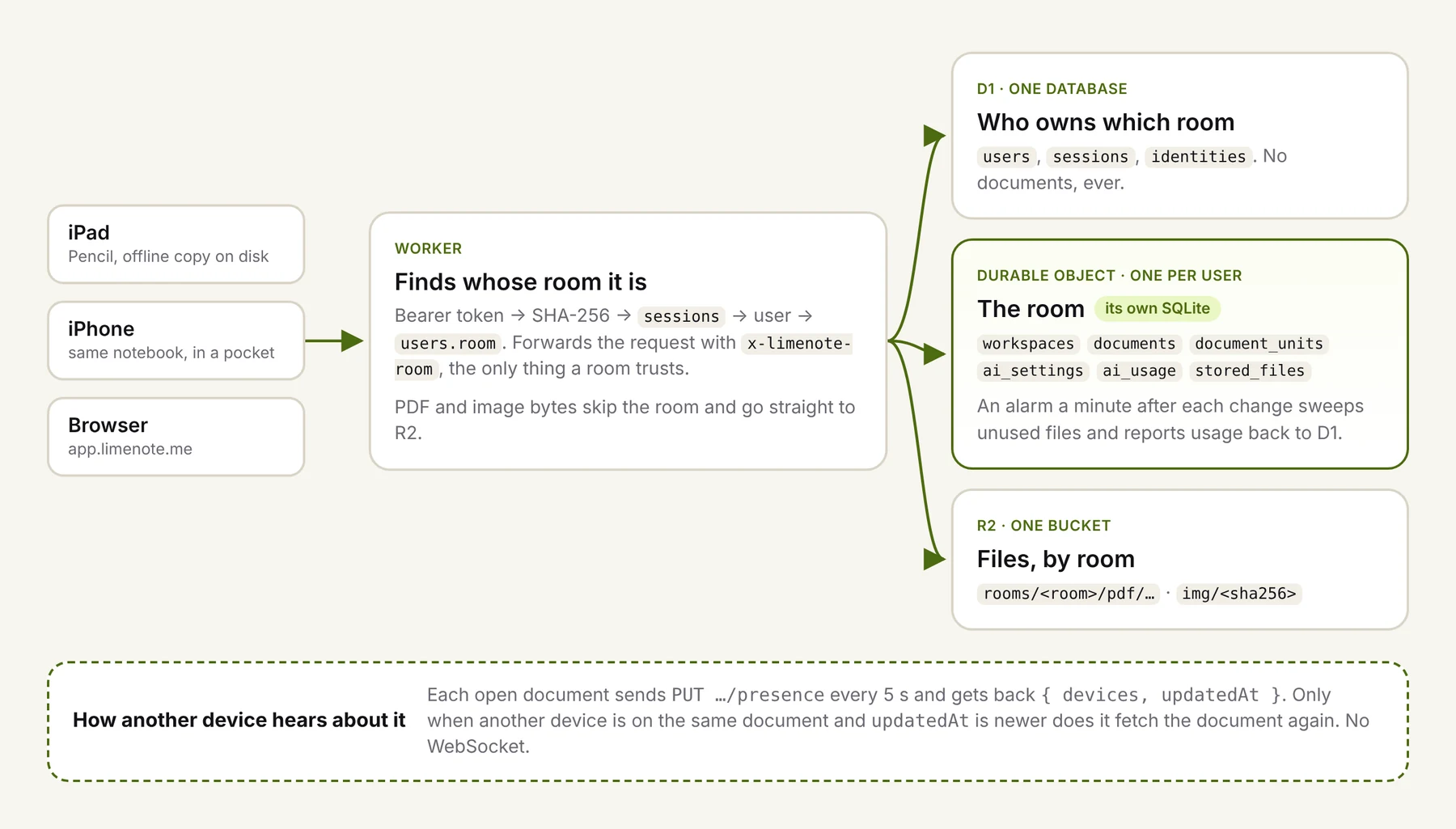
This audit is the reason we built Limenote the way we did: notebooks live in your account first, and the iPad, iPhone and browser are windows onto that one copy. But the advice above applies to every app, ours included. Do the restore test once, wherever your notes live.